TheproductionsystemforCNCfabricationshops
Built first for countertop shops that make and install custom work.
The office, the shop floor and the install crews work from the same jobs.
Drag a job to a lighter day. Mica asks for a reason, and every day's load updates.
For shops that have outgrown the whiteboard
A calmer way to run production. Mica replaces the colour-coded calendar, the whiteboard by the saw and the job spreadsheet with one live picture of every job, from first measure to install.
The stages your jobs already go through
Mica comes set up with nine stages, from Ready for Template to Complete. When a stage is done, the job moves to the next person's queue with its dates and notes attached.
- 1
Ready for Template
Office
- 2
Template
Coordinator
- 3
Production Approval
Coordinator
- 4
Programming
Programmer
- 5
Verification
Coordinator
- 6
Fabrication
Shop floor
- 7
Quality Control
QC
- 8
Install
Installers
- 9
Complete
Everyone
If something's wrong, rework sends the job back to Verification and keeps a record of what happened.
Workstreams
Real jobs don't move in one piece
A kitchen and its island. Ten condo units. A second install trip for the backsplash. Mica splits a job into parallel workstreams and merges them back together, without losing track of either.
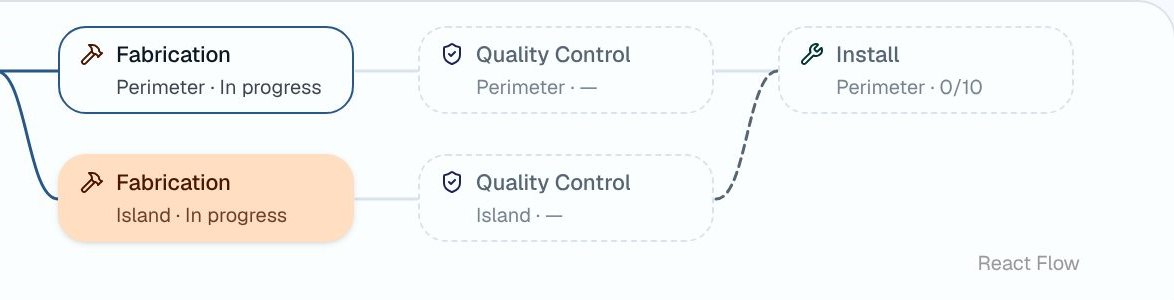

Split a job into workstreams
When the island is ready and the perimeter is waiting on a sink, split the job at its current stage. Each workstream then moves on its own, with its own dates, crew, to-dos and documents.
Merge them back, now or later
Bring a workstream back in today, or plan the merge for a later stage, like install day. Mica holds the other side at that stage until both arrive.
Rework one part, keep the rest moving
Send one workstream back to Verification and the others keep going. The history shows what happened and why.
The customer sees one job
Customers never see the branches. They see one progress line, and every install trip listed on its own date.
Materials & items
Know what's arrived and what's on order
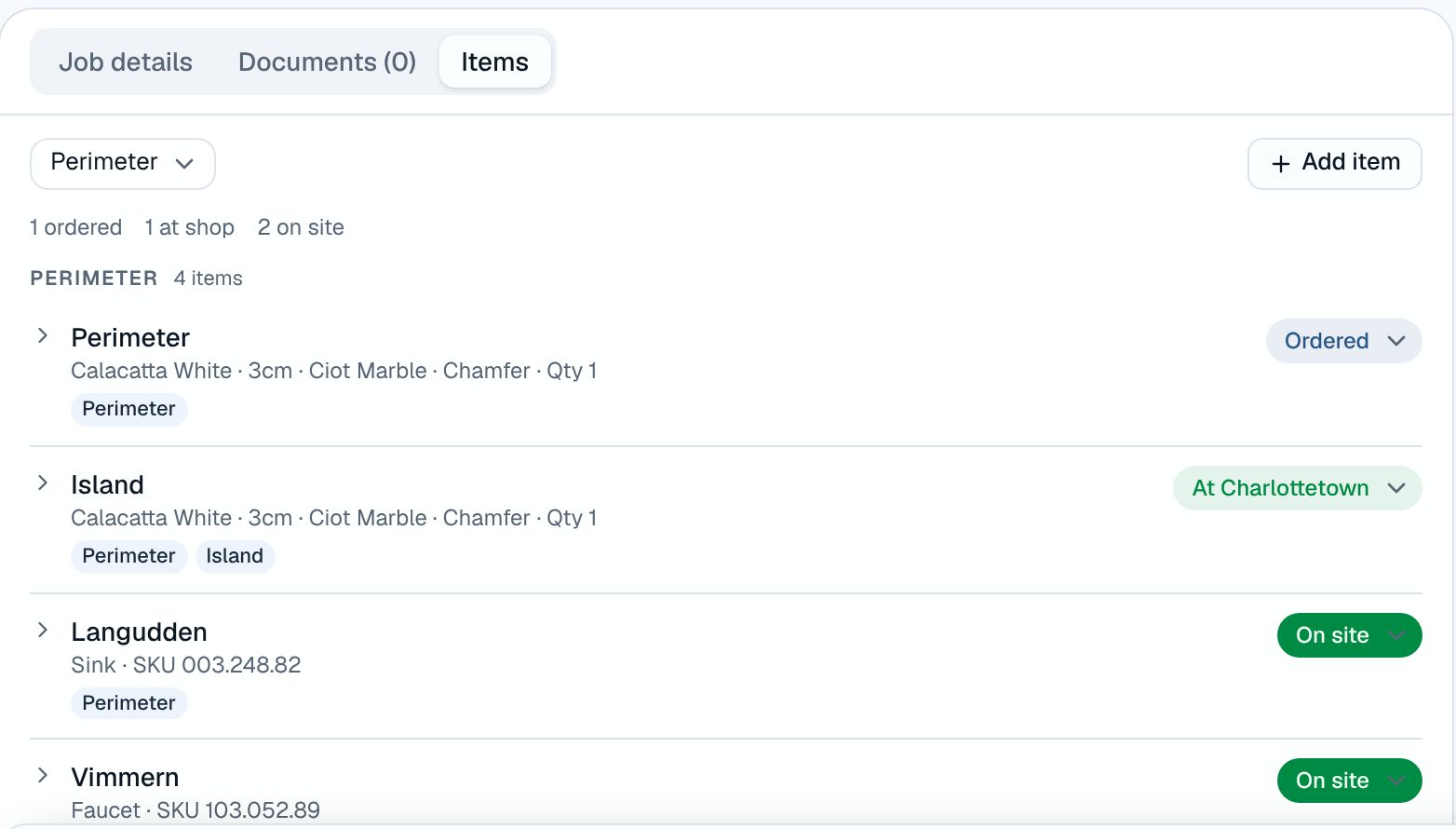
Each job keeps one list of the stone, sinks, fixtures and parts it needs. Nobody has to walk the yard to check whether something came in.
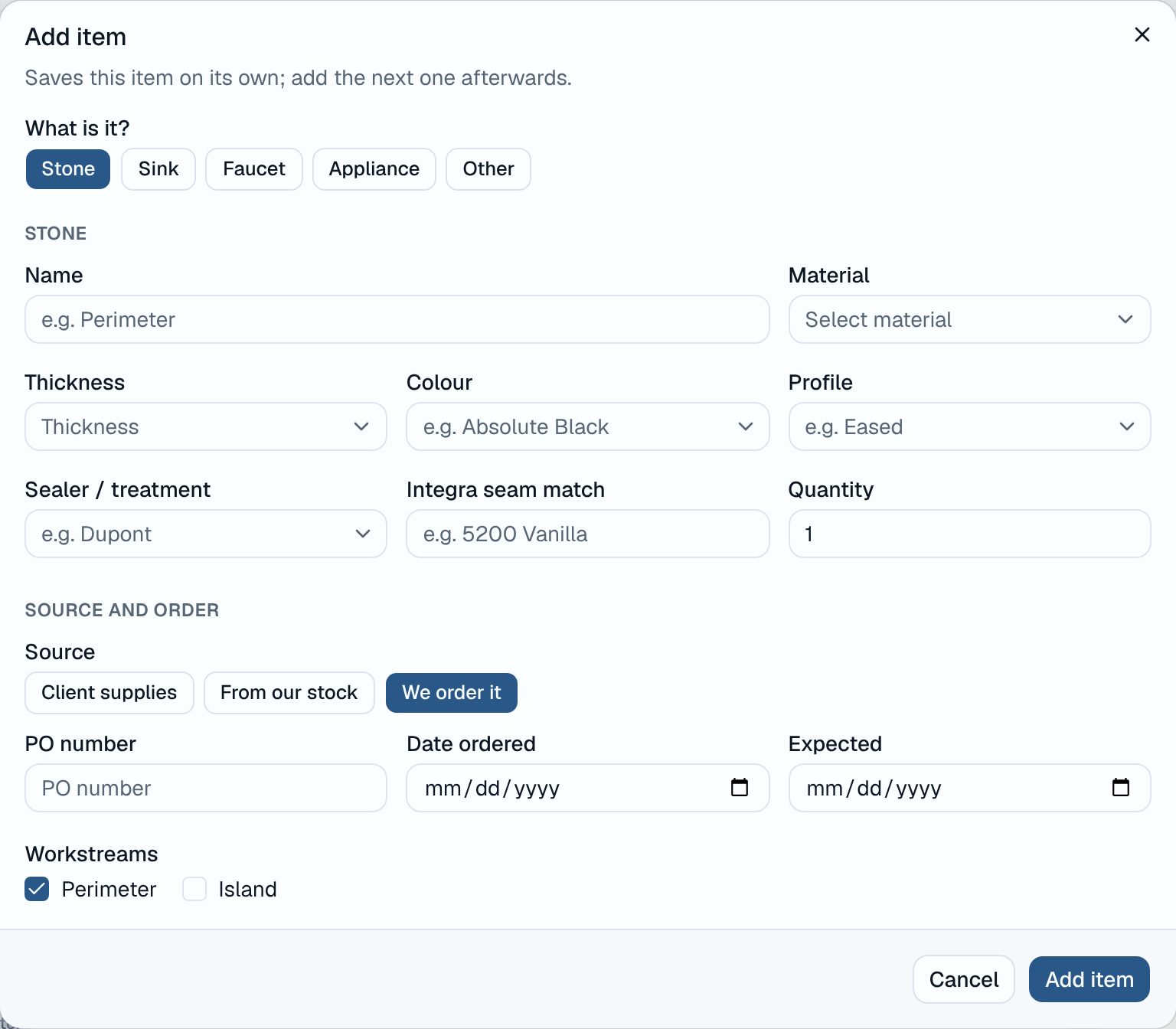
- Stone specs: material and supplier, colour, thickness, edge profile, sealer and seam match
- Sinks, faucets, appliances and anything else, with the SKU the CAD design needs
- Who supplies it: the client, your stock, or an order with PO number and expected date
- Where it is now: ordered, at one of your shops, with the client or on site
- Split a quantity for partial deliveries, like six sinks in and four backordered
- Your own colour, profile and sealer lists, with “did you mean…?” to keep spelling consistent
The same jobs, three ways to look at them
Every screen below is Mica as it is today.
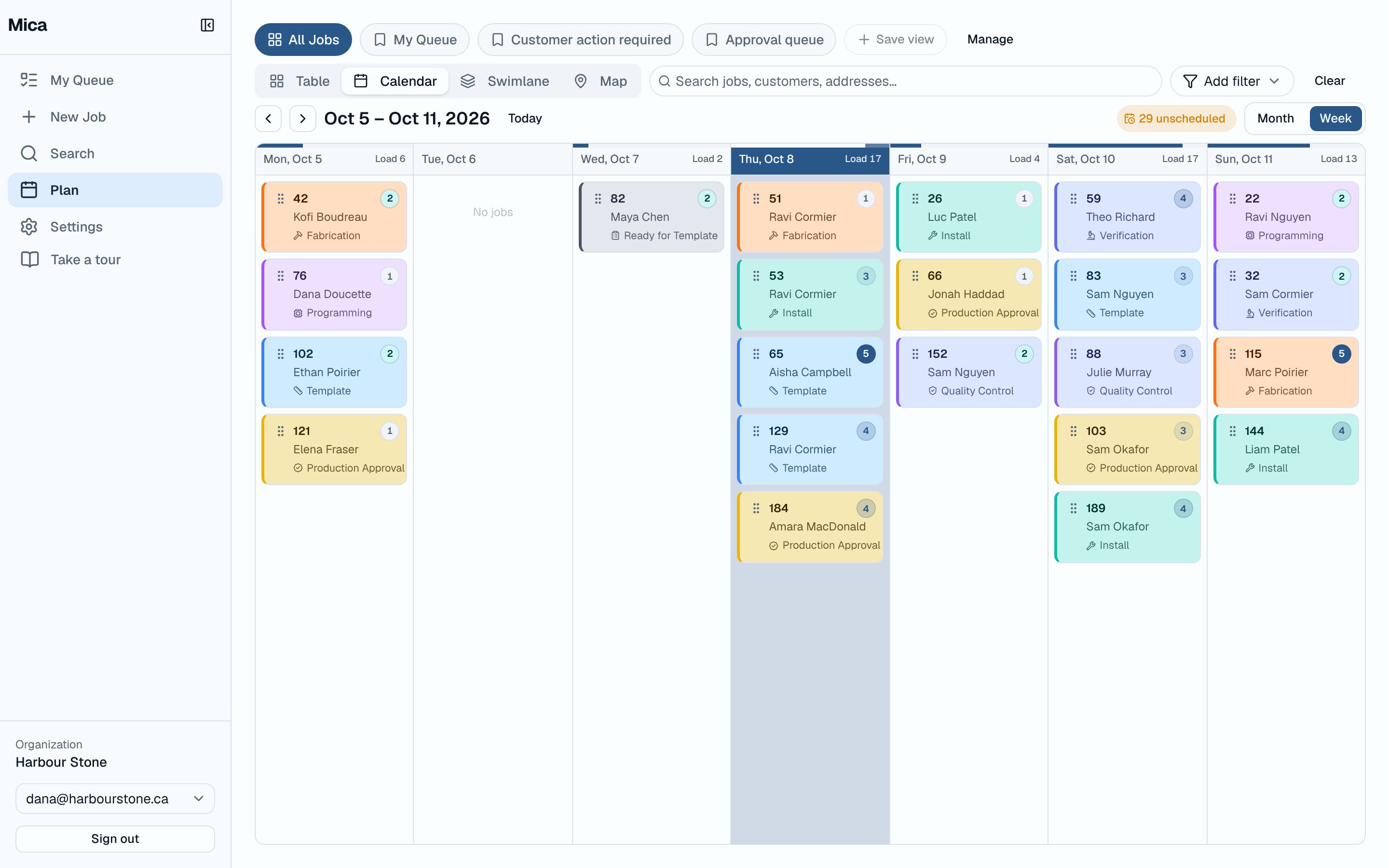
See the week before it happens
The Plan calendar puts every scheduled stage on one week or month. Each day shows its load, weighted by job complexity, so an overbooked Thursday is obvious on Monday.
- Cards coloured by production stage
- Drag a job to reschedule it
- A count of jobs with no date yet
Installers and customers use it too
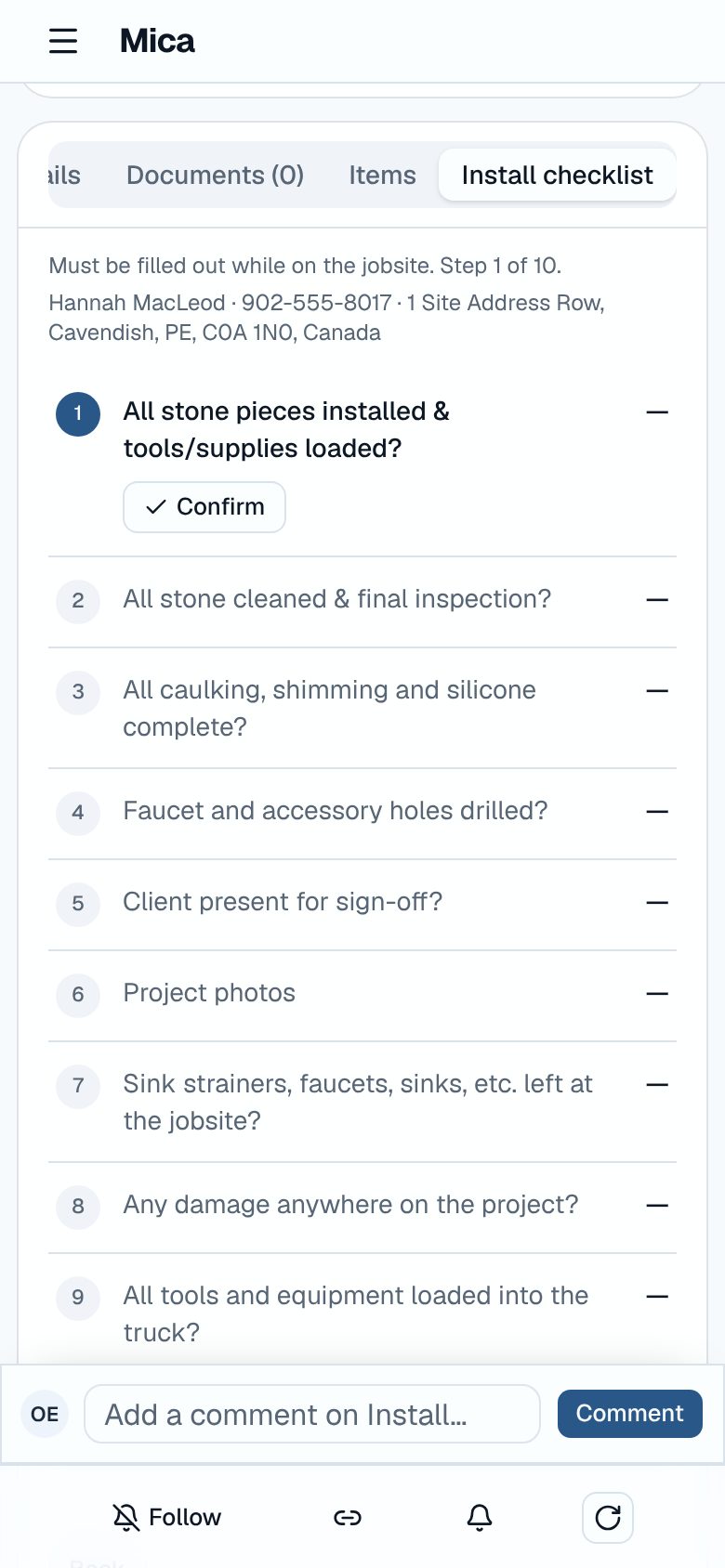
For install crews
Install day on a phone
Installers open their jobs on their phones, with the address, the notes and a step-by-step install checklist. If the signal drops in a basement, their progress saves and syncs when they're back online.
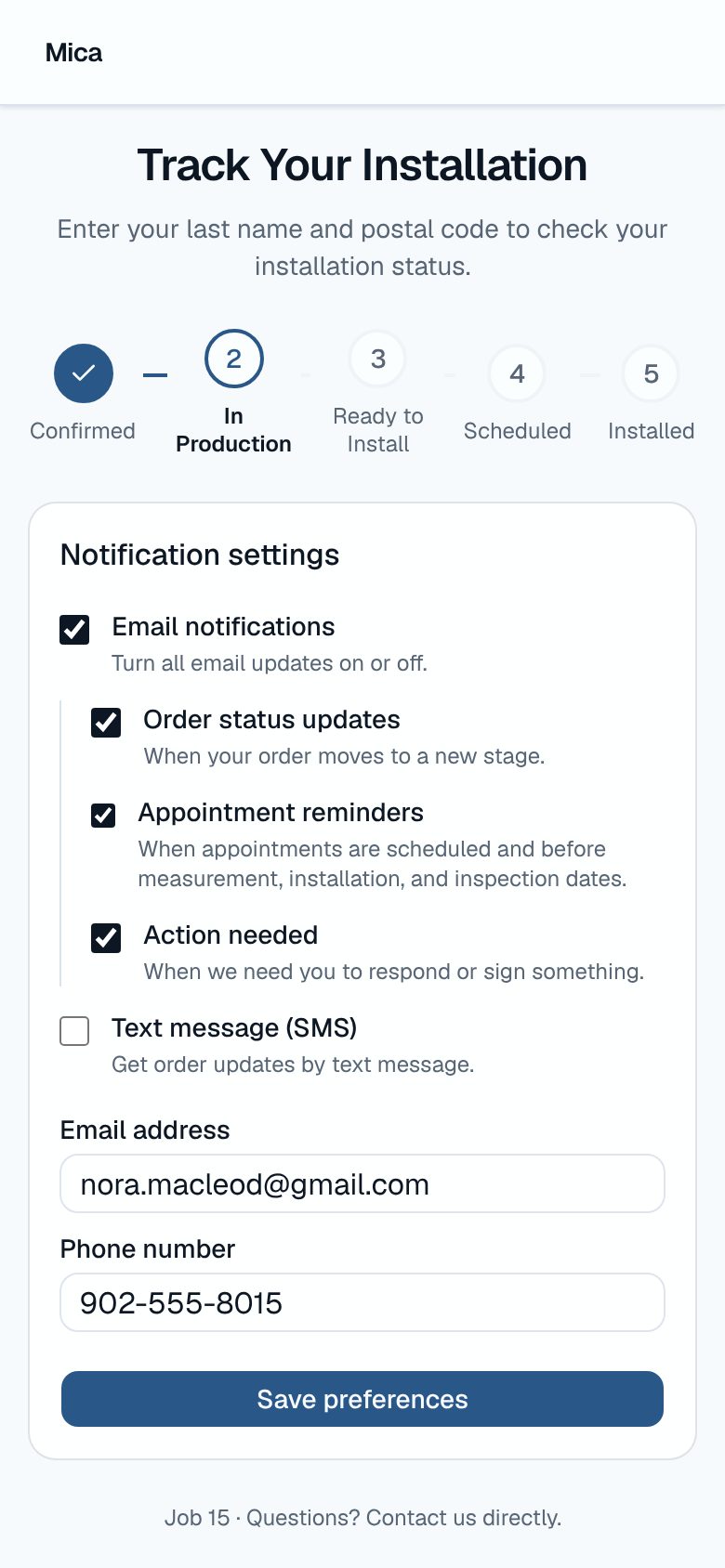
For your customers
Customers stop calling to ask
Send each customer a tracking link. They see where their job is, get reminders before measure and install day, and sign what you need without a trip to the showroom.
The details a busy shop needs
To-dos on every stage
Set the checks each stage needs once, like “credit approved” before measuring. Every new job starts with them.
Standard forms, tracked
Payment authorizations and waivers are added to every job. You can see which ones are still waiting on the customer.
An assistant that knows your jobs
Ask “what's installing this week?” and get an answer from live data. It suggests changes and waits for you to confirm.
A history for every job
Stage moves, date changes, comments and documents are recorded, so “who changed that?” has an answer.
Customer ratings after install
Customers rate the job when it's done. Track satisfaction and NPS by shop and by installer.
More than one shop
Run several locations in one account. Each person sees the shops they work in.
Comments where the work is
Talk about a job on the job, on the stage it's in. Mention a teammate to bring them in.
Notifications you choose
Follow the jobs you care about and hear when they move, without watching the board all day.
No implementation project
Mica isn't an ERP. There's nothing to configure for months and no consultants to hire.
- Step 1
Walk us through your shop
On a short call we map how jobs move today: your locations, your people and who owns each stage.
- Step 2
Bring in your open jobs
Add the jobs you're working on and invite the team. The stages are already set up.
- Step 3
Run tomorrow from Mica
Start the day from the Plan calendar instead of the phone. Turn on customer tracking when you're ready.
Try it on one of your jobs
In twenty minutes we'll follow one of your jobs from first measure to install in Mica, and give you an honest answer on whether it fits.